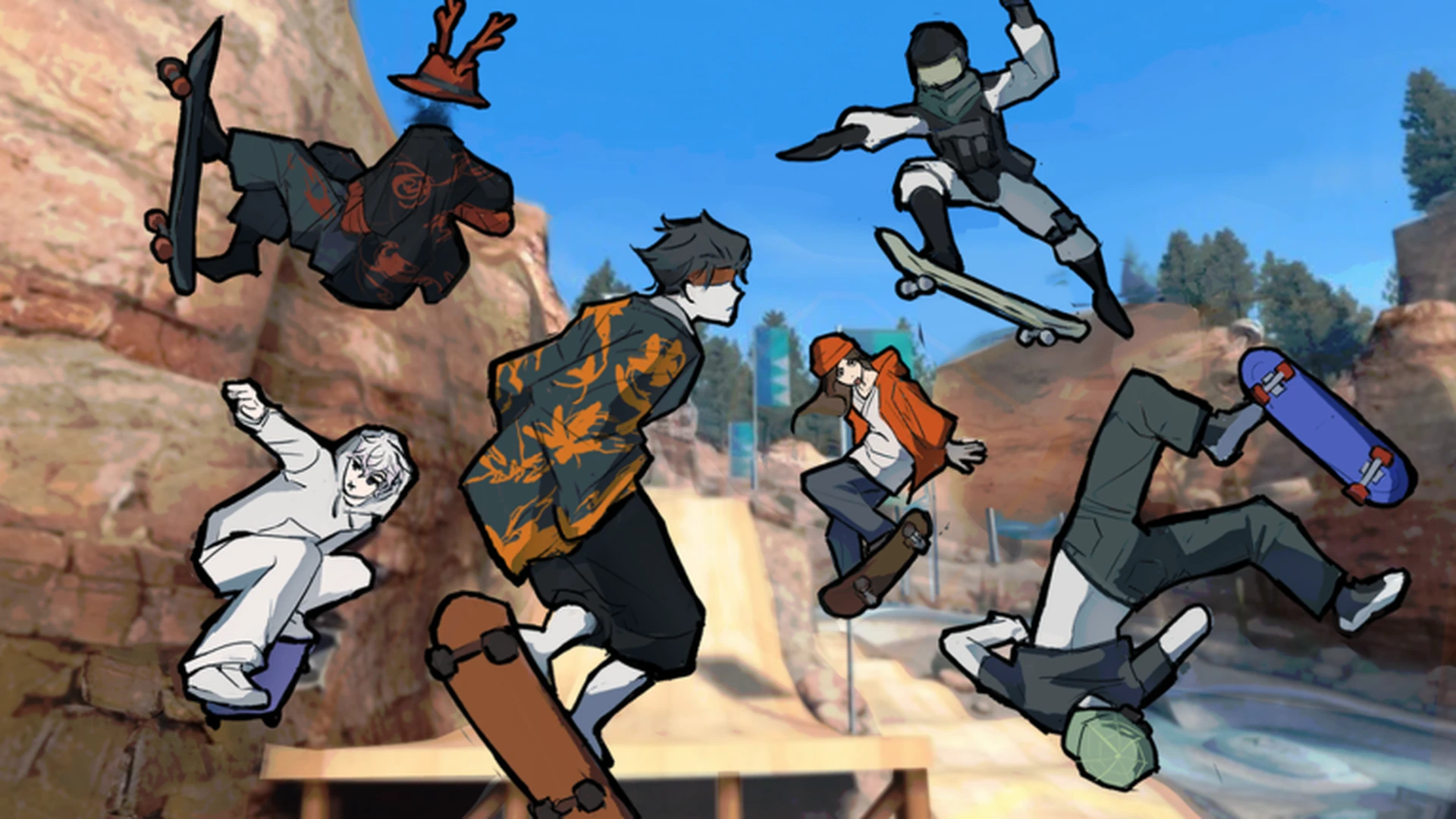
- Skate Tree keyboard controls cover movement, jumping, steering, and landing recovery.
- Movement uses the standard Roblox keys shown on screen; always confirm prompts in-game.
- Landing control matters more than trick difficulty when you are starting out.
- The developer notes that a controller offers the best experience, but keyboard works well.
- Practice in open areas first, then move to rails, ledges, and ramp lines.
Skate Tree Keyboard Controls Overview
Skate Tree is a Roblox skateboarding game built around street spots, trick lines, and Spot Battles. Before attempting combos, you need a solid grip on the keyboard layout. Because the game is new (released October 3, 2026) and receives frequent updates, the exact key prompts shown in-game are the final authority — treat the table below as the standard Roblox keyboard scheme the game builds on.
| Action | Keyboard Input | Difficulty | Notes |
|---|---|---|---|
| Move forward | W | Basic | Hold for steady speed |
| Move backward | S | Basic | Slow down or roll back |
| Steer left / right | A / D | Basic | Combine with speed for wide arcs |
| Jump | Space | Basic | Time jumps at ramp lips |
| Camera turn | Mouse drag | Basic | Keep the line in view |
| Reset character | R | Basic | Recover from stuck spots |
| Trick inputs | Follow on-screen prompts | Intermediate | Shown during airtime |
| Landing control | Release inputs before touchdown | Intermediate | Prevents slips and stumbles |
Key bindings can change with updates. Open the in-game controls or settings menu after every patch to verify your current Skate Tree keyboard controls before a long session.
Movement, Jumping, and Landing Technique
Raw inputs only get you moving. Clean skating comes from how you chain movement, jumping, and landing together. Each core action has a distinct keyboard habit worth building early.
Movement
- Hold W for consistent speed
- Tap A / D for small corrections
- Wider arcs keep momentum on curves
Jumping
- Space near ramp lips adds height
- Jump late on flat ground for pop
- Avoid jumping mid-turn at full speed
Landing
- Release steering inputs before touchdown
- Straighten the board to the travel direction
- Absorb landings instead of instant turns
| Skill | Keyboard Habit | Common Mistake | Fix |
|---|---|---|---|
| Speed control | Feather W on approach | Holding W into every obstacle | Ease off before technical sections |
| Jump timing | Space at ramp lip | Jumping too early or late | Watch the lip, count the beat |
| Air steering | Light A / D taps | Slamming keys mid-air | Small corrections only |
| Landing | Neutral inputs on descent | Steering at touchdown | Center inputs before contact |
| Recovery | R to reset | Fighting a stuck board | Reset fast, keep the session moving |
Holding A or D at the moment of landing is the most common cause of lost lines. Train yourself to return keys to neutral during the descent — this single habit improves landing consistency more than any trick practice.
Step-by-Step Keyboard Training Plan
Follow this order to build reliable keyboard control in Skate Tree. Each step focuses on one habit before adding the next.
Learn the Starting Area
Spawn in, hold W, and skate the open main area. Drag the mouse to keep your line visible. Do not attempt tricks yet — just loop the zone until steering feels natural.
Drill Jump Timing
Find a single ramp or ledge. Approach with steady W input, press Space at the lip, and land straight. Repeat the same jump until you land clean five times in a row.
Add Landing Recovery
Practice releasing all steering keys during the descent. Land neutral, then steer after your wheels settle. This separates air control from ground control.
Link Two Obstacles
Connect two jumps in one run. Focus on exit speed from the first landing so you reach the second obstacle with enough momentum to clear it.
Move to Street Routes
Take your keyboard habits to rail and ledge sections. Follow the on-screen trick prompts during airtime, then return to neutral inputs for the landing.
When you can complete a full street route without a reset (R key), your keyboard fundamentals are ready for Spot Battles and longer trick lines.
Keyboard vs Controller Comparison
The Skate Tree developer states the game plays best on a controller, but keyboard remains fully viable. Here is how the two input styles compare for different play situations.
| Situation | Keyboard | Controller |
|---|---|---|
| Basic movement | Direct and responsive | Smoother analog arcs |
| Precision steering | Digital taps, less gradual | Gradual stick control |
| Jump timing | Crisp single-key presses | Button timing equally crisp |
| Camera control | Mouse offers fast look | Slower right-stick turning |
| Trick prompts | Clear key prompts | Clear button prompts |
| Overall feel | Precise, twitch-friendly | Developer-recommended feel |
There is no wrong choice. Keyboard excels with quick camera work and precise taps; controller excels at smooth carving. Many players switch between both while learning which lines suit each input style.
Practice Checklist and FAQ
Keyboard Control Milestones:
- Skate the main area without losing control
- Land five clean jumps in a row
- Complete a two-obstacle line without resetting
- Finish one street route with no R-key resets
- Enter a Spot Battle with reliable landings
Spend the first five minutes of every session on basic movement and jump drills. Warm hands land cleaner lines, especially before competitive Spot Battles.
Q: What are the basic Skate Tree keyboard controls for movement?
Use W to move forward, S to slow or roll back, and A / D to steer left and right. Space handles jumping, the mouse controls the camera, and R resets your character. Always confirm current prompts in the in-game settings menu, since updates can adjust bindings.
Q: Can I play Skate Tree well with only a keyboard?
Yes. Keyboard input is fully capable for movement, jumping, and trick prompts. The developer notes a controller offers the best overall feel, but keyboard players benefit from fast mouse camera control and crisp jump timing.
Q: Why do I keep losing control when I land?
Most landing failures come from holding steering keys at touchdown. Release A / D and any trick inputs during the descent, land with the board facing your travel direction, and only steer after your wheels settle.
Q: How do I improve jump timing on ramps?
Approach with steady W input and press Space at the ramp lip rather than early on the slope. Practice one ramp repeatedly, aiming for five consecutive clean landings before moving to linked obstacles.