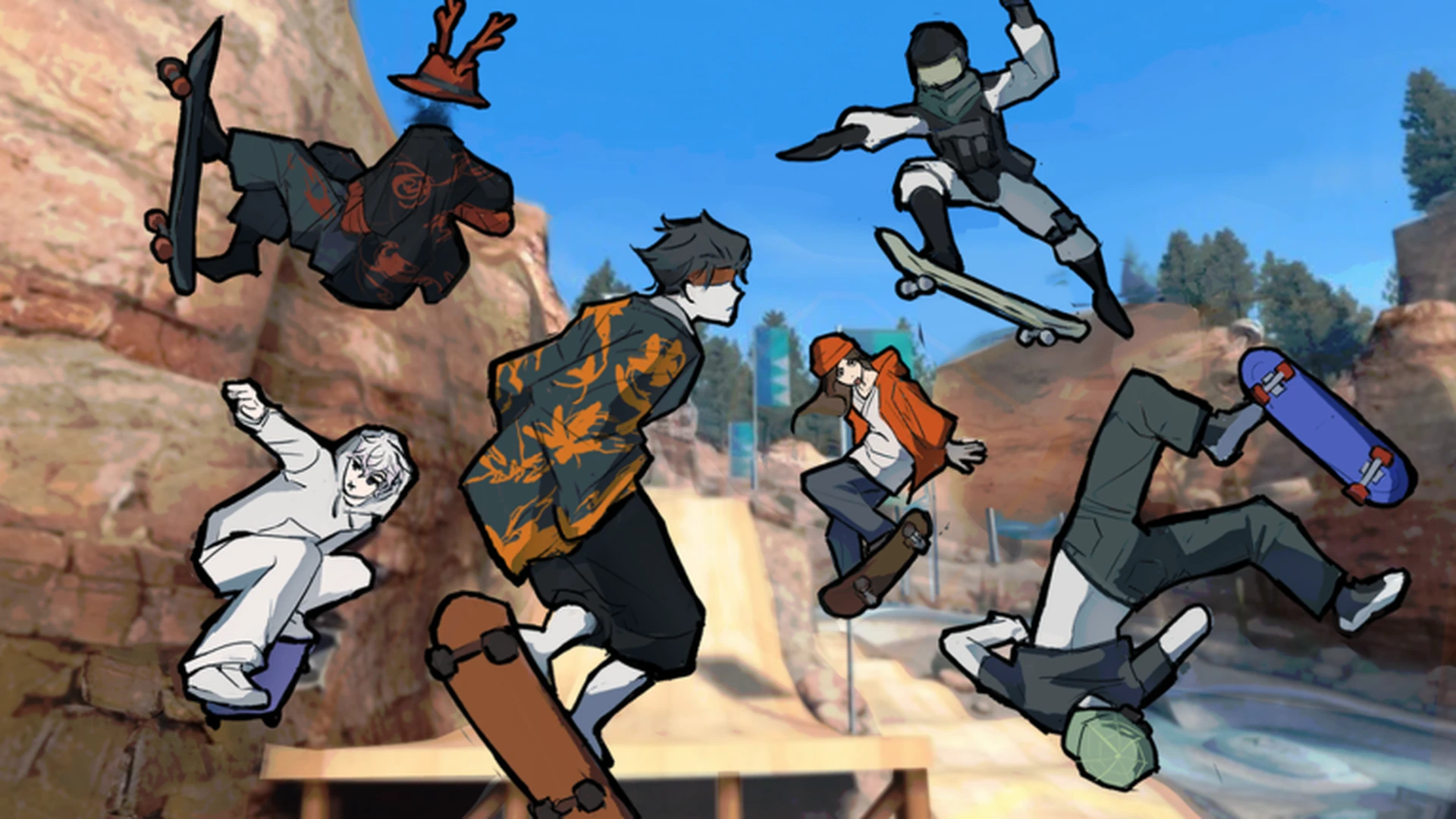
- Skate Tree mobile controls rely on Roblox's touch layout: virtual joystick for movement, jump button, and drag-to-look camera.
- Controller recommended: the developer states gameplay feels best with a controller, so pair one if your device supports it.
- Camera discipline: smooth drag-look before every jump is the single biggest mobile skill upgrade.
- Landing control: release steering input right before touchdown to avoid slips on touchscreens.
- Practice order: straight lines, then turns, then jumps, then linked tricks.
Skate Tree Mobile Controls Overview
Skate Tree is a Roblox street skateboarding game built around spot battles, trick lines, and board movement, and many players run it on phones or tablets. Skate Tree mobile controls follow the standard Roblox touch scheme rather than a bespoke layout: a virtual thumbstick drives movement, a dedicated jump button handles pops off the ground and ramps, and the camera is controlled by dragging anywhere on the screen. Because skateboarding demands precise timing, small touch habits like centering the camera and easing off the stick before landing make a large difference in consistency.
The developer's own game description notes that Skate Tree is best experienced "on controller." Touch play is fully possible, but expect a learning curve on trick timing compared to physical buttons.
| Touch Element | Function | Skating Use |
|---|---|---|
| Virtual thumbstick | Movement and steering | Push, direction changes, speed control |
| Jump button | Pop off ground or ramp | Ollies, ramp launches, gap clearing |
| Camera drag | Rotate view | Scouting lines, aligning landings |
| On-screen prompts | Trick inputs | Follow game prompts for specific tricks |
Mobile vs Controller Comparison
Roblox on mobile supports external controllers, and in a trick-based game the input method genuinely changes your results. Here is how the two options compare in Skate Tree.
Touch Controls
- No extra hardware needed
- Camera drag takes a finger off movement
- Jump timing depends on button placement
- Best for casual cruising and exploring spots
Controller
- Developer-recommended input method
- Sticks handle steering and camera separately
- Physical buttons give consistent trick timing
- Best for spot battles and long trick lines
| Aspect | Mobile Touch | Controller |
|---|---|---|
| Movement | Virtual thumbstick | Left stick |
| Camera | Drag on screen | Right stick |
| Jump | On-screen button | Assigned controller button |
| Trick precision | Moderate | High |
| Landing recovery | Release inputs pre-touchdown | Center stick on touchdown |
If you own a Bluetooth controller, use it for spot battles and technical lines, but keep practicing touch input so you can still play and warm up anywhere.
Step-by-Step Touch Setup
Getting comfortable with Skate Tree mobile controls is faster when you set up deliberately instead of jumping straight into tricks.
Warm up in the main skate area
Spawn into Skate Tree and push around the open starting zone with the thumbstick. Focus on gentle direction changes before any jumping.
Lock in camera habits
Before each obstacle, drag the camera so your line of travel sits ahead of your character. Good camera angle prevents most missed approaches.
Drill the jump button
Practice popping off flat ground, then off a small ramp. Learn how long to hold approach speed before tapping jump.
Train landings
Release steering input a moment before touchdown, then re-engage the stick to roll away clean. Repeat until it becomes reflex.
Link actions into lines
Combine push, turn, jump, and landing on one short route. Consistency on a short line beats one lucky hard trick.
Repeat the same short line several times in the open practice area before adding another obstacle. Muscle memory on touchscreens builds through repetition, not variety.
Common Mobile Mistakes and Fixes
| Mistake | Why It Hurts | Fix |
|---|---|---|
| Dragging camera mid-jump | Steals movement finger, causes drift | Set camera before taking off |
| Holding full stick on landing | Board slips out from under you | Ease off input right before touchdown |
| Jumping at max speed always | Overshoots ramps and ledges | Approach with controlled, moderate speed |
| Skipping warm-up runs | Cold fingers miss timing | Do 2-3 clean laps before tricks |
| Ignoring on-screen prompts | Trick inputs get missed | Check prompts when learning new actions |
Trick timing feels worse on low frame rates. Close background apps and lower Roblox graphics settings in the in-game menu if landings seem inconsistent.
Touch Training Checklist
Mobile Control Milestones:
- Complete one clean lap of the starting area without falling
- Land five consecutive jumps in the open practice zone
- Set the camera before every approach for a full session
- Link three actions into one continuous line
- Try one spot battle on touch controls
FAQ
Q: Does Skate Tree support mobile touch controls on Roblox?
Yes. As a Roblox game, Skate Tree uses the platform's standard touch layout: a virtual thumbstick for movement, a jump button, and drag-based camera control. The developer notes that a controller offers the best experience, but touch play is fully functional.
Q: Should I use a controller for Skate Tree mobile controls instead?
If your device supports Bluetooth controllers, it is worth pairing one. The developer explicitly recommends playing on controller, and physical sticks and buttons make trick timing and landing control more consistent during spot battles.
Q: How do I land tricks more cleanly on a touchscreen?
Release or soften your steering input right before touchdown, make sure the camera is set before you jump rather than during the air, and practice the same short line repeatedly in an open practice area before adding obstacles.
Q: Where can I verify the official game and controls?
Check the official Roblox game page for Skate Tree and the developer group RNE Third Vault for the latest control prompts and updates, since exact on-screen prompts may change with patches.